 Signature Studio
Cursive Signature Generator
Create a flowing cursive signature from your name.
Compare elegant script styles and download a free watermarked preview. Unlock clean PNG / SVG with a paid pack.
Downloads process your signature outlines on our server without saving them. Privacy
Free: 600 × 250 PNG · White background · Watermark
Create a Cursive Signature Online
A cursive signature brings the letters of your name together in a flowing script. This cursive signature generator starts with Elegant selected, so you can see decorative capitals and connected letterforms immediately. Type a name or initials, compare the available styles, then adjust the color and size.
Think about where the signature will appear. For a small email sign-off, simpler curves may be easier to read. For a letter or a personal design, longer loops can give the name more character. Preview your full name and a shorter version before choosing; different letter combinations create a different rhythm.
A paid clean download has a transparent background, so there is no white rectangle around the lettering. Free previews retain a white background and watermark. Choose PNG for an app that accepts images, or SVG for a compatible vector editor. The lettering is saved as outlines, keeping its shape even when the font is not installed on the receiving device.
Cursive vs. handwritten signatures: which should you choose?
Cursive describes the style of the letters: flowing shapes, connected strokes and a rhythm that carries the name across the page. Handwritten describes how a mark is made. Your own handwriting can be cursive, printed, or a mix of the two. A font-based cursive signature gives you an even, repeatable design; a drawn signature captures the particular movement of your hand.
Use this cursive signature generator when you want to compare letter shapes quickly without drawing each version. The same name can look formal in Elegant, balanced in Classic, or relaxed in Signature. Keep the name unchanged while switching styles so you can judge the lettering itself. Then compare your full name with initials to decide how much space the finished mark should occupy.
Choose Draw if the important detail is your natural stroke, an unusual letter connection, or a name that the available fonts cannot represent. A mouse can feel less natural than a finger or stylus, so try the device you are most comfortable using. You can also use a cursive font as a visual reference, then practise a simpler version in Draw until the movement feels comfortable.
Balance flowing letters with a readable name
Begin with the capital letters. They give the signature its overall shape and often take up more space than the smaller letters. Check that a decorative first letter does not hide the second letter, and that the end of the surname has enough room. Long names may work better with a quieter style; short names can leave more space for an expressive capital.
Next, look at the middle of the name. Repeated loops can become difficult to distinguish when the image is small. Reduce the preview to the intended display size and check letters such as e, l and r. If they merge visually, compare a simpler style before increasing the image size. Keep the spacing and proportions consistent when you resize the downloaded signature in another app.
Prepare your cursive signature for a document
Download a PNG for a letter, email footer or PDF editor that accepts images. Place it near your typed name and view the whole page before saving. For a small email signature, choose a readable version with restrained flourishes and check it on a phone as well as a desktop. The image should support your message without taking over the layout.
Keep an SVG copy when your design software supports it. Its vector outlines can be resized without turning the curves into visible pixels, and the recipient does not need your selected font installed. For applications that do not accept SVG, use the PNG version instead. Paid PNG and SVG downloads from this tool keep the background transparent, so the surrounding page remains visible between and around the letters.
Best Cursive Signature Styles
The best cursive signature is one that suits your name. Compare these examples, then try the same styles with your own letters in the preview above.
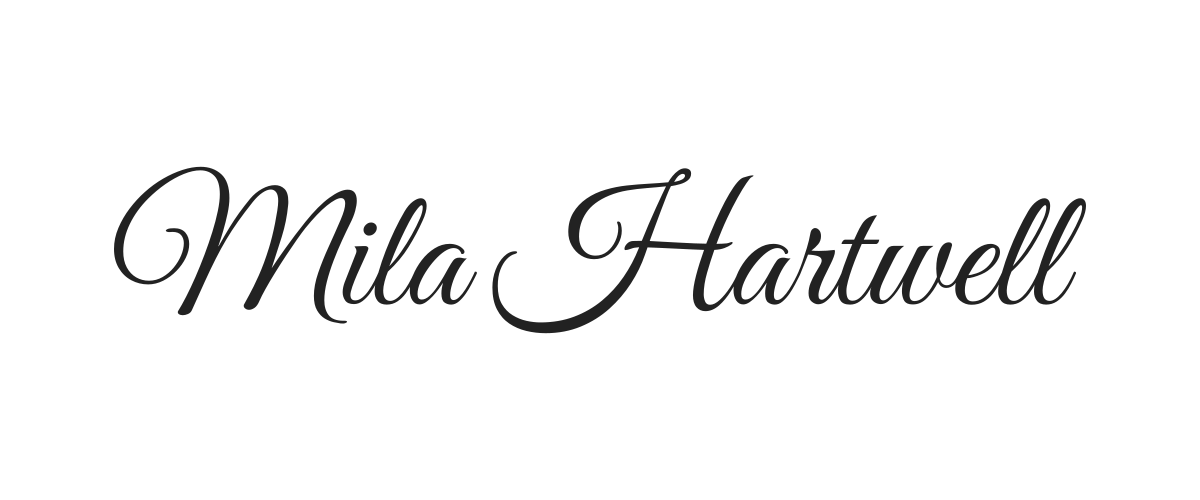
Elegant
Decorative capitals and connected loops. A flowing choice when you want your full name to feel expressive.
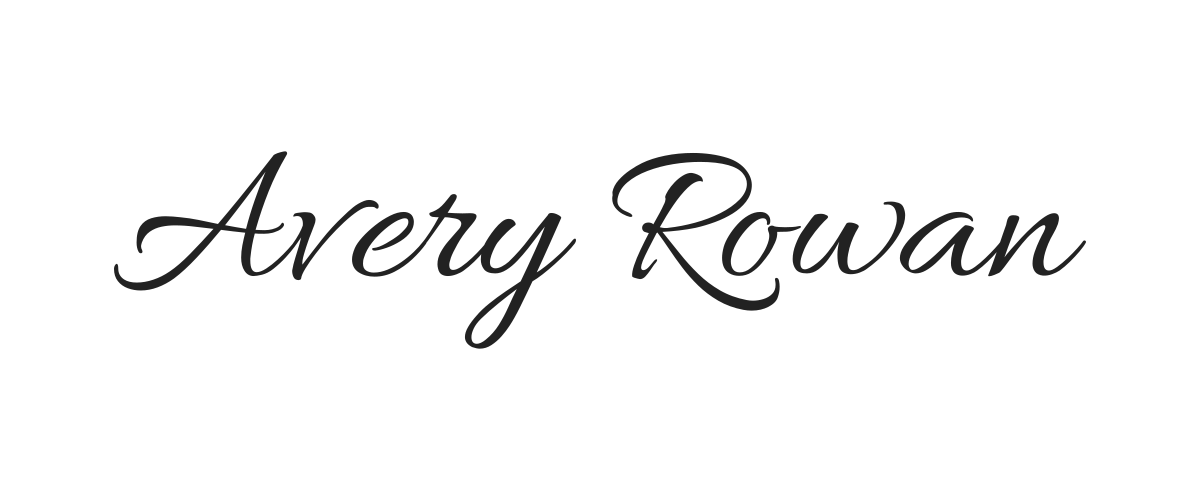
Classic
Soft curves with a clear, steady rhythm. Try this simpler script when the signature needs to stay readable at a smaller size.
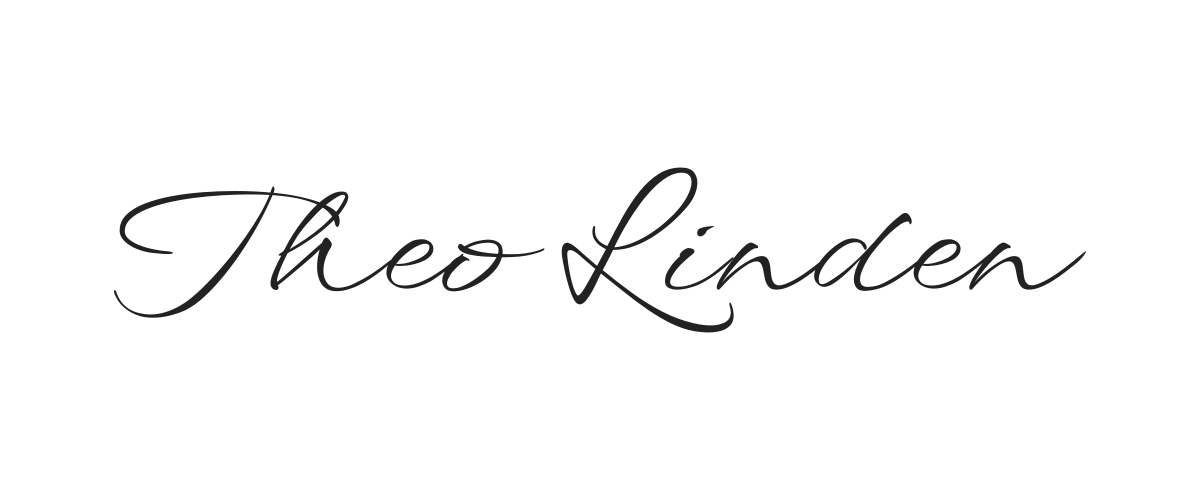
Signature
Loose, slanted strokes with a handwritten feel. Compare initials and a full name to find a shape you enjoy repeating.
How to Write a Cursive Signature
Write the name you use
Enter your full name or try a first initial with your surname. Start with the name you normally sign so you can compare how familiar letter combinations look in cursive.
Find a rhythm for the letters
Begin with Elegant, the default cursive style. Compare the simpler Classic script or the looser Signature style. Look for readable capitals, comfortable spacing and loops that stay clear at a small size.
Refine, download and practise
Choose your ink color and adjust the size. Download a free white-background preview or unlock clean transparent PNG / SVG with a paid pack. To practise handwriting, copy the shape slowly, then switch to Draw to try the movement in your own hand.
FAQ
Practical answers about creating, saving and using your signature.
Why does my cursive signature look different with another font?
Each font has its own capital shapes, slant, loops and letter connections. A style that suits one name may crowd another, especially around repeated tall letters. Compare your own name in each style at the size you plan to use. The examples show the available lettering, while your preview shows how those shapes work with your specific letters.
Can I keep the same cursive signature on different devices?
Yes. Save the exported PNG or SVG and use that file on your other device. PNG stores the finished image, while SVG stores the letter outlines, so neither requires the selected font to be installed. Keep a copy of your original download and resize it proportionally in the destination app to avoid stretching the signature.
How does the cursive signature generator work?
It turns your typed name into the letterforms of a selected cursive font. You can compare styles, adjust the ink color and size, and download the result. The preview and the exported file use the same vector outlines, so the lettering stays consistent.
How do I write a cursive signature by hand?
Use the preview as a starting point. Practise your capital letters, join the smaller letters with a continuous rhythm, and keep the finishing stroke comfortable to repeat. Switch to Draw when you want to try your own handwriting instead of using a font.
Which cursive signature style should I choose?
Elegant has decorative capitals and flowing loops. Classic is quieter and easier to read at a small size. Signature is a looser, more informal script. Compare the same name in each style and choose the balance of personality and readability that suits its use.
Can I create a cursive signature from initials?
Yes. Enter two initials, a first initial with your surname, or just your first name. Initials make a compact mark; a full name gives the connected letters more room to flow. Try both before deciding which version to download.
Can I download a cursive signature with a transparent background?
Free downloads are watermarked PNG previews on a white background. Clean transparent PNG and SVG downloads require a paid pack. Use PNG in a document or email app that accepts images. Use SVG in a compatible design editor when you need to resize the signature without losing sharpness.
Is the cursive signature AI generated?
This cursive tool uses handwriting fonts and your chosen settings. It does not generate new handwriting with AI. For a mark made from your own strokes, use Draw. For original AI image designs, choose AI mode in the main generator.